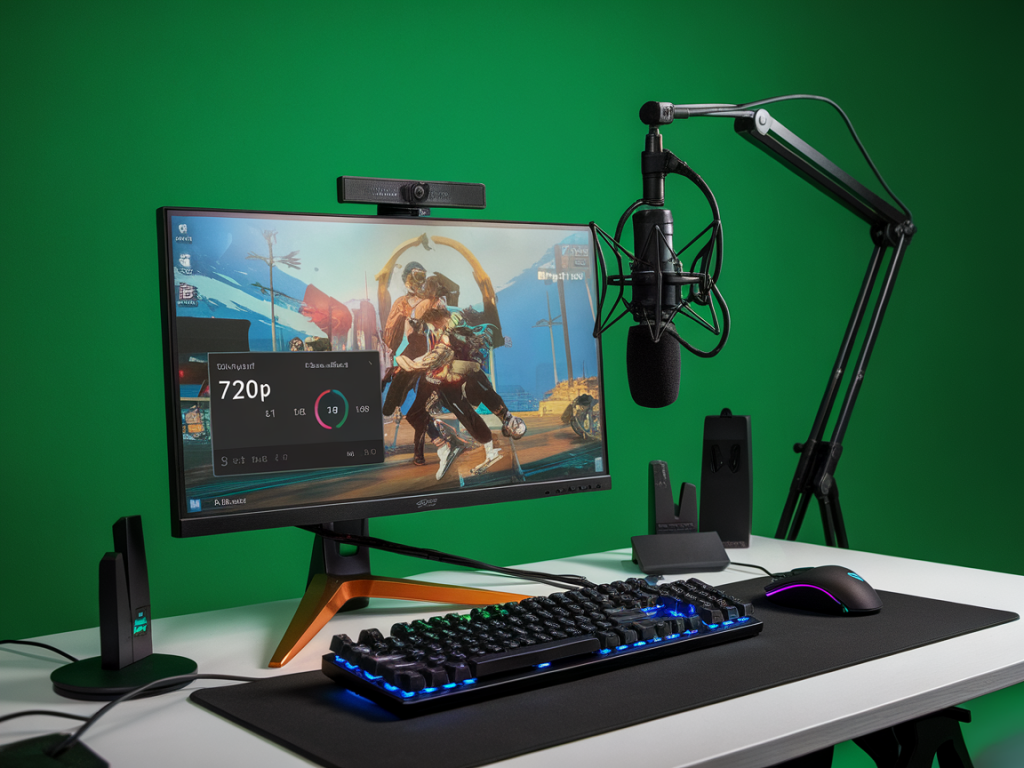
I care about two metrics more than almost anything else when I tune an esports stream: latency (how quickly a viewer sees what the caster sees) and bitrate (how much data per second we’re allowed to send). Those two seem obvious, but what’s less obvious—and what I keep going back to in tests—is how they push and pull on each other. Sacrificing a little bitrate for lower latency can be the right call in a live match where split-second callouts matter. Keeping maximum bitrate for pristine visuals can be the right call for highlight reels or VOD-first events. In this piece I’m going to walk through why those trade-offs matter specifically for esports, the practical effects you’ll see, and the exact encoder settings I use (and recommend) for pro casters operating under different constraints.
Why latency matters in esports (beyond Twitch chat)
Latency is more than just “chat arrives a few seconds later.” In competitive gaming it changes behavior. Low latency:
High latency can lead to awkward timing: a caster calls a play, viewers react after the next play already unfolded. For tournament producers trying to coordinate talent and match control, even a few seconds of drift breaks cues and reduces production polish.
Why bitrate matters for competitive viewers
Bitrate drives visual fidelity—sharpness, motion clarity, artifacting. In fast-paced shooters or MOBAs, clarity is critical: a pixelated enemy or smeared text can change viewer perception and reduce clutch moment impact. Higher bitrate helps preserve small details like player names, HP bars and minimap icons.
But bitrate has costs: more network requirements for the caster, potentially higher CPU/GPU load for encoding, and stricter platform limits (Twitch historically caps recommended bitrates around 6 Mbps for most streamers). If you overload upload capacity or select an inefficient encode path, you get stutters and packet loss—far worse than lowering bitrate intentionally.
How latency and bitrate fight each other
Two main technical tensions show up:
So when you chase pristine visuals, you often add milliseconds of processing and buffering. When you chase low latency, you simplify encoding decisions and sometimes accept visible artifacts or lower resolution to preserve timing.
Encoder choices and the practical trade-offs
Which encoder you pick matters a lot. The two main practical choices are:
For pro casters in esports, I see NVENC (new) as the default hardware pick, especially on NVIDIA Turing and later GPUs. It gives high-quality H.264 with lower input-to-stream latency and consistent performance across long events.
Exact encoder settings pro casters use (practical presets)
Below are the settings I use as starting points. Tweak them to your network and platform. All examples assume OBS Studio or similar encoder control with standard fields.
| Scenario | Resolution / FPS | Encoder | Bitrate (kbps) | Keyframe | Profile / Preset | B-frames / Lookahead / AQ | Notes |
|---|---|---|---|---|---|---|---|
| Pro tournament (low-latency priority) | 1080p60 | NVENC (new) H.264 | 4500–6000 | 2s | Preset: Performance / Low-Latency (if available) Profile: High | B-frames: 0–1 Lookahead: Off or low AQ: Off or low | Use CBR, minimal encoder buffering. Aim for stable upload. |
| High-quality broadcast (visual priority) | 1080p60 | x264 (CPU) | 6000–8000 (if platform allows) | 2s | Preset: faster → fast (for strong CPUs) | B-frames: 2 Lookahead: On (medium) AQ: On | Higher CPU, higher latency but better detail |
| Hybrid (balanced) | 720p60 | NVENC H.264 | 3500–4500 | 2s | Preset: Quality | B-frames: 1 Lookahead: low AQ: moderate | Good visual clarity, manageable latency |
| Low bandwidth / mobile viewers | 720p30 | NVENC or x264 | 2000–3000 | 2s | Preset: performance / veryfast | B-frames: 0–1 | CBR recommended. Lower frame rate to preserve motion clarity per kbps. |
Key points on the table above:
Other settings and network considerations
These finer points often make or break a stream:
Testing workflow I use before events
I always run these checks before any competitive stream:
I’ve found that a pragmatic, data-driven approach beats “best practices” copied from unrelated workflows. Latency and bitrate are a pair: tune them together, choose the right encoder for your hardware, and test under real load. If you’re running tournaments or high-stakes casts, invest in a dedicated capture/encode machine or newer NVENC GPU—you’ll get lower latency and consistent quality without putting your game machine under pressure.