I used to dread sponsor reads during live streams. The moment I switched from juggling sticky notes and mental cue cards to using Stream Deck profiles as a reliable automation backbone, my read accuracy and confidence improved dramatically. In this article I’ll walk you through how I structure Stream Deck profiles to automate sponsor reads, avoid common live-read mistakes, and build repeatable workflows that scale across shows and platforms.
Why use Stream Deck profiles for sponsor reads?
Stream Decks (I’m usually working with an Elgato Stream Deck — the XL size is my go-to) are more than pretty buttons. Profiles let you create context-aware button layouts that change with scenes, guests, or segments. For sponsor reads, that means:
Consistent messaging: Pre-populated copy reduces improvisation and errors.Timing control: Trigger countdowns, music fades and camera cuts together so the read matches your production rhythm.Fail-safes: Build checks like “confirm” prompts, visual indicators and rollback buttons.Multi-tool orchestration: One button can send a scene change to OBS, play an intro stinger from Ableton, and paste the sponsor line into chat.Core components of a sponsor-read profile
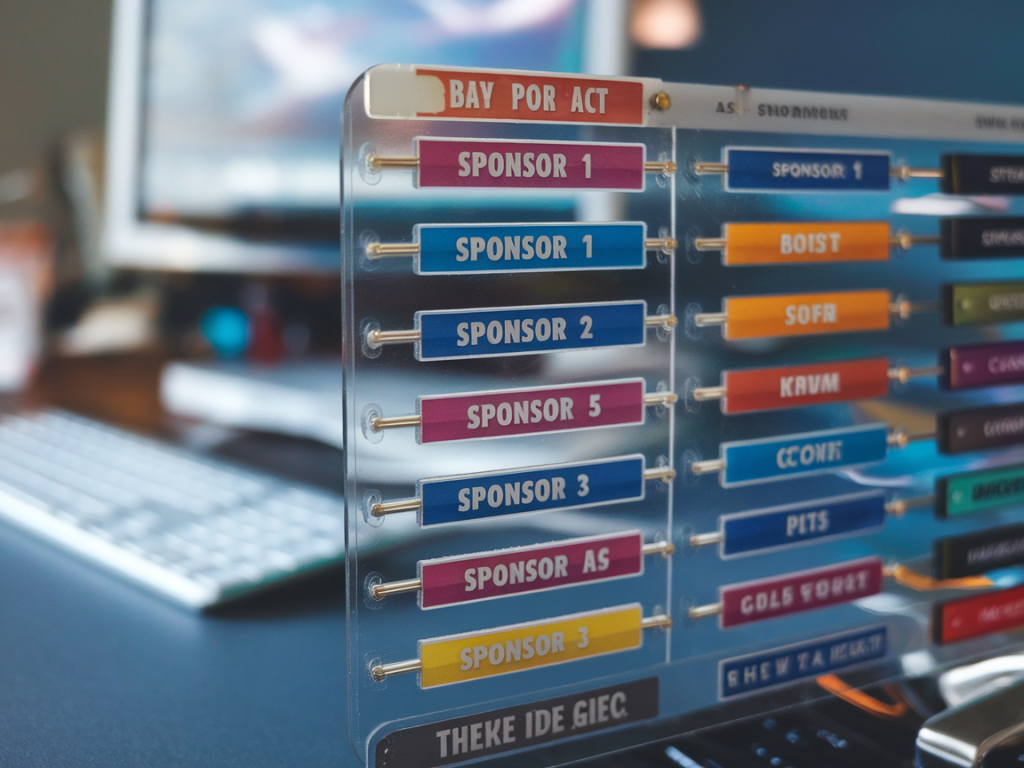
When I design a sponsor-read profile, I include a small set of buttons that cover preparation, execution and recovery. Here’s the minimal layout I use on every profile:
Prep/Queue: Opens the sponsor script, highlights keywords, and cues the host with a visual timer.Go Live: Switches camera, fades background music, triggers event stinger, and displays an on-screen lower third with sponsor name.Autotype: Pastes the sponsor script to a teleprompter app or chat window if needed.Ad-Lib toggle: Switches to a shorter or longer script depending on time remaining.Confirm/Abort: A two-step confirmation for anything irreversible (e.g., an actual ad break or insertion to an external Ad Server).Post-read actions: Re-enable chat, resume music, log the read in a tracking sheet.How to structure the sponsor script and variants
Two keys to avoiding mistakes are clarity and redundancy. I keep sponsor scripts in three tiers:
Full script: The complete, approved copy you should read verbatim when time allows.Short script: A concise version (30–45 seconds) for tight segments.Bullet points: Three to five talking points for natural reads.I store these variants in a small CSV or JSON that the Stream Deck can access via a plugin (for example, the Multi Action or a custom HTTP request to a local script). That way, switching variants is a single button press — no frantic reading necessary.
Practical setup: tools and integrations I use
Here’s my typical stack and why it matters:
Elgato Stream Deck: hardware interface and profiles.OBS Studio / vMix / ATEM: scene switching and overlays; Stream Deck integrates directly or via plugins.Teleprompter app (PromptSmart, Teleprompter Pro): for long-form reads — Stream Deck controls playback and scroll speed.Companion / Bitfocus: to centralize control when working with multiple devices (Blackmagic ATEM, Elgato tools, audio mixers).AutoHotkey or Keyboard Maestro: for typed pastes into chat or browser fields.Google Sheets + IFTTT / Apps Script: to log reads automatically and update show notes for post-production.Using these tools I build Multi Actions on the Stream Deck. A single button might run: switch to “Sponsor” scene in OBS, play a 2-second stinger in Voicemeeter, display a lower-third graphic, start a 60-second countdown overlay, and paste the short script into chat.
Designing fail-safes to eliminate mistakes
Nothing stops a live nervous moment like a safety net. These are the fail-safes I always include:
Confirm dialogues: For major actions, use a two-step: first button arms the action; second button executes. It’s a tiny delay that prevents misfires.Visual indicators: Use Stream Deck icons that change color when a sponsor read is armed vs complete. I add text like “SPONSOR READY” (orange) and “SPONSOR DONE” (green).Countdowns and beeps: A visible countdown timer with an audible beep gives the host pacing so they don’t rush or forget copy.Backup scripts: Keep a pinned chat message with the full legal lines and an alternate short script on your moderator dashboard.Instant rollback: One press to revert scene and audio levels if something goes wrong.Testing protocol — what I run before going live
I follow the same 5-minute sponsor test before every show:
Arm the sponsor button and confirm the two-step execution works without delay.Verify OBS transitions, lower-third graphics and countdown overlay trigger in the correct order.Listen to audio ducking: is background music at the right level during the read?Send the script to chat and ensure moderators can copy/paste legal language quickly.Log a dummy entry into the Google Sheet to confirm tracking works.Testing regularly makes the control flow muscle memory — I rarely need to think about the mechanics during the actual read.
Workflow examples for different show sizes
Here are two compact workflows I use, depending on production scale:
Solo creator: One Stream Deck profile with buttons for “Prep,” “Sponsor Go,” “Short Variant,” and “Abort.” Use AutoHotkey to paste script into chat and OBS WebSocket to switch scenes.Small studio with a producer: Producer uses Companion to control the Stream Deck actions remotely; host has a smaller deck with only “Read” and “Abort” buttons. Producer confirms the read is logged and the ad graphic runs cleanly.Tips for natural-sounding reads
Automation should reduce stress, not make reads robotic. I train hosts to use automation as structure, not a crutch:
Practice the bullet points until the read feels conversational.Use the full script only for legal lines; ad-lib the rest to keep authenticity.Record sponsor reads during rehearsal and review them for pace and tone.Measuring success and iterating
I track a few metrics after each sponsored segment: viewer retention during the read, click-throughs or promo code redemptions, and any moderation flags. Small adjustments — tighter timing, alternate wording, different lower-third — compound into fewer mistakes and better outcomes over time. I also run A/B tests: short vs. long reads, or stinger lengths — and use those results to refine the profile.
Setting up Stream Deck profiles for sponsor reads is an investment of time that pays off in calm, consistent, and measurable sponsorship delivery. Once you have your profiles, fail-safes and testing in place, live reads become another reliable part of your production — not a moment of anxiety. If you want, I can share a sample Stream Deck profile export and a simple Companion layout I use as a starting point for teams.