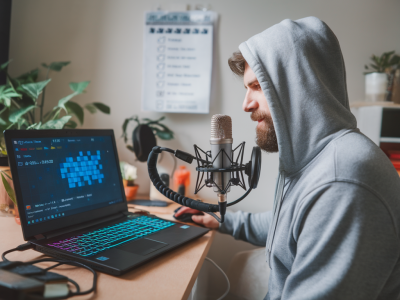
I love squeezing new utility out of old gear. If you’ve got an old smartphone gathering dust and you want a cheap way to generate share-ready clips from your live streams, this guide walks through a practical sub-$200 rig that turns a phone into a dedicated clipping camera, routes it into OBS via NDI, and automates uploads so you get near-instant shorts for YouTube, TikTok or Instagram Reels.
Why I build rigs like this
My goal here is pragmatic: lower the friction between live moments and discoverable clips. Most creators don’t need a second purpose-built camera to start producing short-form content. An old phone, a reliable NDI link, and a few automation rules are enough to capture multiple angles, highlight reaction shots, and push clips to platforms without manual file wrangling. It’s cheap, repeatable and scales with workflows you already use.
What this setup does
In short: the phone becomes a secondary camera that feeds into OBS as an NDI source. OBS records/streams and I use scene markers or hotkeys to generate clip segments. Those clips are then processed (trim, transcode) automatically and uploaded to a cloud folder. From there, automation tools (Zapier, Make, or custom webhooks) detect new clip files, create metadata, and push them to platforms as “shorts” with minimal manual intervention.
Hardware and software parts list (approx. costs)
Target budget: under $200. You might already own some of these items.
- Old smartphone (iPhone 8/Android 8+): free–$50 (use an old phone you already have)
- Phone tripod or clamp: $10–$20 (small flexible tripod like Joby or a clamp mount)
- USB charging cable and power brick: $10 (keep the phone powered)
- Local Wi‑Fi that supports mDNS/zero‑conf: free (use your router)
- PC/Mac with OBS Studio: existing machine
- LAN or USB tethering cable: optional $0–$10 (for stable connection if Wi‑Fi unreliable)
If you need to buy something, a cheap clamp and cable are the two small buys that keep you under $200.
Software you’ll need
- OBS Studio (free)
- OBS NDI plugin (obs-ndi by NewTek / plugin installer)
- NDI HX Camera app (NewTek NDI|HX Camera) or NDI Screen Capture equivalents on mobile — many options exist depending on iOS/Android
- ffmpeg (free) — for server-side trimming/transcoding
- Automation tool: Zapier, Make (Integromat), or a simple webhook script (Node/Python)
- Cloud storage: Google Drive, Dropbox or an S3 bucket (for file pickup)
Step-by-step setup
Below I outline the core flow and give the exact settings I use to keep file sizes small while retaining platform-friendly quality.
1) Prepare the phone as an NDI camera
Install the NDI HX Camera app on the phone. Connect the phone to the same network as your streaming PC. For the most reliable connection, I prefer using USB tethering (phone connected to the PC) which avoids Wi‑Fi dropouts and reduces latency.
- Open the NDI app and start the camera stream.
- Confirm the phone appears as an NDI source in OBS (Source > NDI Source).
- Set the phone to lock orientation and disable auto-lock so it doesn’t sleep mid-stream.
2) Configure OBS
In OBS, add your phone as an NDI source and position it into a scene dedicated to clip capture — for example “Reaction Camera.” I keep a separate scene collection for clip recording to avoid interrupting the main stream layout.
- Recording format: MKV (more resilient to crashes), then use OBS to remux to MP4 when a clip is finalized.
- Encoder: x264 is fine. If you have a Nvidia/AMD GPU, use hardware encoding (NVENC/AMF) to reduce CPU load.
- Base resolution: match your stream. For clips destined for shorts, 1080p at 30–60fps is ideal.
- Bitrate: 8–12 Mbps for 1080p; lower if you want smaller files.
- Create a hotkey that starts/stops recording for quick manual clip capture, or use OBS Studio’s “Start Recording” and a separate action to save a local region when you press a stream deck button or keyboard macro.
3) Capture workflow options: manual vs marker-driven
I use two approaches depending on how automated I want the clip creation to be:
- Manual hotkeys: Press a hotkey to start recording the NDI scene the moment something happens and press again to end. Quick, low complexity.
- Scene markers / Replay Buffer: Use OBS Replay Buffer (requires disk space) so you can hit a hotkey to save the last X seconds/minutes. This is perfect for reactions or highlights you want after they happen.
4) Automatic file processing and trimming
OBS will create files in your recordings folder. The next step is to watch that folder and process new files automatically.
- Option A — local script: Use a simple Node or Python script that watches the folder. When a new MKV appears, run ffmpeg to remux and transcode to MP4 with a preset for vertical or square shorts (crop/scale as needed):
ffmpeg example (crop to 9:16 vertical for shorts):
<code>ffmpeg -i input.mkv -vf "crop=in_h*9/16:in_h,scale=1080:1920" -c:v libx264 -preset veryfast -b:v 2500k -c:a aac -b:a 128k output.mp4</code>
- Option B — cloud pickup: Save the original to a watched cloud folder (Google Drive or Dropbox). Use Zapier/Make to trigger a transcoding lambda (AWS) or a small cloud function that runs ffmpeg and posts the clip to the destination platform.
5) Automating uploads and metadata
I automate uploads so clips are ready to publish as soon as they are processed. The automation pipeline usually does these steps:
- Detect new clip file in cloud folder (or receive webhook from local script).
- Generate filename and metadata (title template, description, hashtags, platform-specific suffixes like #shorts).
- Upload to YouTube (using YouTube Data API), TikTok (if you have access to API endpoints), or queue in a social scheduler like Buffer/Hootsuite/Later for manual review.
- Optionally add thumbnails and set privacy to “unlisted” for review before publishing.
Practical tips and trade-offs
- Network reliability: Wi‑Fi is convenient but can drop. USB tethering or Ethernet (if you can use a small USB‑LAN dongle for the phone) reduces risk.
- Battery and heat: Keep the phone on a charger and monitor for overheating. Lower camera resolution if heat is an issue.
- Framerate and motion: For reaction cams, 30fps is usually fine. For gameplay or high-motion, opt for 60fps if your phone and OBS can handle it.
- Aspect ratios: Record wide but crop for vertical if you want flexible reuse. I record full 16:9 and post-process a vertical crop for best composition control.
- Legal and community: Check platform policies for automated posting and ensure your clips don’t violate music/rights issues.
Common problems and fixes
- No NDI source visible: Ensure both devices are on the same subnet and mDNS/UPnP isn’t blocked by router AP isolation.
- Laggy feed: Switch from Wi‑Fi to USB tethering or decrease resolution/framerate.
- Clip audio out of sync: Use OBS’s Sync Offset in the Advanced Audio Properties to align phone audio with desktop audio. Consistency helps—if you always use the phone mic, set a fixed offset.
- Uploads failing: Check API quotas and refresh tokens for your automation platform. For YouTube, make sure the OAuth credentials are valid and the channel has upload rights.
Quick low-friction recipe I use
- Old iPhone on tripod, USB tethered to streaming laptop.
- NDI HX Camera app → OBS NDI source in a “reaction” scene.
- OBS Replay Buffer set to 60 seconds; hotkey saves last 15 seconds when something notable happens.
- Local watcher script remuxes + transcodes to vertical MP4 via ffmpeg.
- Processed file uploaded to Google Drive; Zapier detects new file, adds metadata and posts to YouTube as an unlisted Short for quick review.
This rig is intentionally simple: it prioritizes reliability and low cognitive load over complex production. You can iterate—add hardware encoder, stream deck, or a small NDI hardware encoder—but the cheap phone + OBS + automation combo gets you consistent shorts without breaking the bank.