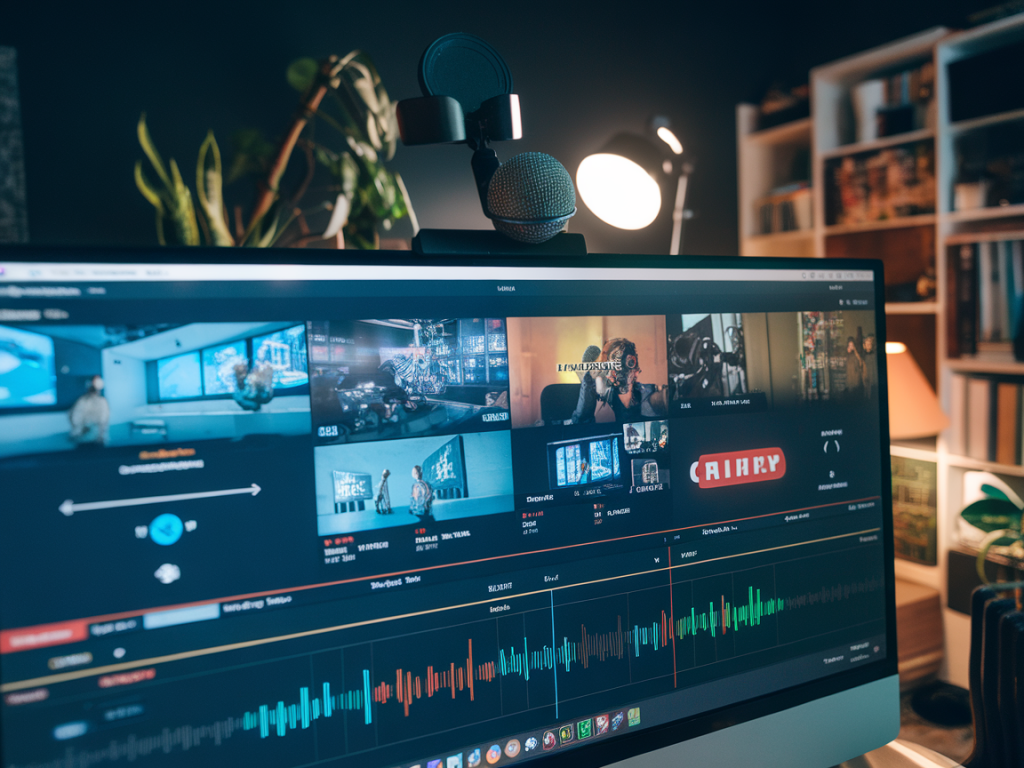
I used to spend hours scrubbing through hour-long OBS recordings to find the three or four segments worth keeping. Editors did the same, and we all agreed: this is not a good use of creative bandwidth. Over the last two years I built and iterated a practical pipeline that turns raw OBS captures into chaptered highlight-ready files automatically, so editors spend around 90% less time on trims. In this article I’ll walk you through the approach I actually use, the trade-offs, and the tools that make it repeatable for solo creators and small teams.
Why chaptered highlights matter (and what “auto-generate” really means)
When I say “chaptered highlights,” I mean a recording file enriched with time-stamped segments (chapters) and a short label for each segment. With chapters, an editor or producer can jump to the exact point in the timeline that matters, or a platform can scrape those markers to generate highlight clips automatically.
“Auto-generate” in this context combines two things: automated detection of interesting moments (based on audio/text/visual cues) and automated insertion of chapter metadata into the recorded file or a sidecar file (SRT, VTT, or JSON). It isn’t perfect out of the box, but it drops manual discovery and initial trims to near zero.
High level pipeline I use
My pipeline has four stages. You can run them locally or in the cloud depending on scale.
Record: OBS outputs an MKV (preferred) with separate audio tracks and optional stream metadata.Transcribe & detect: Generate a transcript and detect timestamps for applause, silences, topic shifts, or on-screen overlays.Chapterize: Convert those timestamps into chapters and embed them into the file or export a VTT/SRT/JSON sidecar.Export highlights: Use the chapters to render short clips or provide editors a chaptered file to pull from.Why start with MKV from OBS
OBS’s MKV container is my default capture for two reasons: it preserves multiple audio tracks and is resilient to crashes (no corrupted outputs). MKV is easily converted to MP4 or remuxed without re-encoding, which keeps quality and saves time.
Tools and services that actually move the needle
There are many approaches; here are the tools I rely on and why.
OBS Studio — capture with scene/streamer metadata. Enable output of separate audio tracks. Optional: install StreamFX for advanced scene metadata or markers.ffmpeg — remuxing, generating proxies, and extracting audio. Fast and scriptable.OpenAI Whisper or AssemblyAI — speech-to-text for transcripts and speaker diarization. I use Whisper for privacy/local runs and AssemblyAI/Rev for higher accuracy in noisy streams.Pyannote or ML-based silence detection — speaker change detection and non-speech segmenting. Useful to find natural boundaries.Chapterize (or custom script) — assemble timestamps into chapter metadata or SRT/VTT sidecars.DaVinci Resolve / Premiere / Descript — final editing. Descript is particularly useful when transcript-driven editing is viable.Step-by-step: from OBS file to chaptered output
I’ll describe the CLI-friendly approach I use; adapt for GUI tools if you prefer a visual workflow.
1 — Capture: Record in MKV with at least two audio tracks (mic and desktop). Add scene names to OBS via a text source or pin metadata with StreamFX. Optionally enable OBS markers with hotkeys during the session for obvious moments (guest join, sponsor mention).2 — Extract audio: Remux to MP4 if you need an MP4 container, but keep the original MKV for safety. Use ffmpeg to extract a high-quality WAV of the combined audio or separate WAVs per track.3 — Transcribe: Run Whisper or a cloud STT to produce a time-coded transcript (JSON, VTT, or SRT). I prefer WhisperX or Whisper with alignment for better timestamp granularity.4 — Detect interesting moments: Combine several detectors: Text-based: Look for keywords in the transcript (e.g., “big announcement,” “link,” product names) to mark likely highlights. Audio-based: Use silence and loudness detection to find applause, laughter, or sudden spikes. A simple RMS threshold with a 1–3s window works well. Speaker-change: Use diarization to detect when a new person takes over—often a natural chapter boundary. Manual markers: Merge any OBS markers you placed live.5 — Score & cluster: Each candidate timestamp gets a score: keyword hits, loudness delta, speaker change, OBS marker weight. Cluster close timestamps (within 8–12s) into a single chapter boundary and compute a chapter title from the highest-scoring transcript segment (e.g., use the most representative 5–6 words or a generated summary via an LLM).6 — Create chapter metadata: Export chapters as: SRT/VTT sidecar for editors and platforms. FFmetadata for embedding via ffmpeg (so media players show chapters). JSON for automated rendering pipelines.Use a script to write timestamps in hh:mm:ss.sss format and include short titles (20–60 chars).
7 — Optional render: If you want short highlight clips, render segments using ffmpeg or an automated render farm. Use proxies for quicker turnaround, then relink to master for final export.Embedding chapters directly into files
Embedding chapters lets editors open a single file with jump points in most modern players and NLEs. ffmpeg can read an ffmetadata file and write chapters into MP4 or MKV without re-encoding:
| Command | Purpose |
| ffmpeg -i input.mkv -i chapters.ffmeta -map_metadata 1 -c copy output.mkv | Embed chapters from ffmetadata into MKV/MP4 without re-encoding |
Make sure your ffmetadata file follows the ffmpeg spec: a [CHAPTER] block per chapter with START and END in microseconds and a title field. I keep a utility script to convert VTT/SRT/JSON to ffmetadata automatically.
How I generate sensible chapter titles
Chapter boundaries are only as useful as their labels. Raw transcripts produce noisy labels; I use short strategies:
Extract a 6–10 word span around the highest-probability keyword and clean it up with a small LLM prompt (remove filler, keep subject).Fallback to “Discussion: [topic keyword]” if the transcript is low quality.Keep titles short and platform-friendly (no emoji unless you want them visible to viewers).Trade-offs and gotchas
This isn't a silver bullet. Expect these limitations:
Automatic chapters will sometimes split at awkward moments (false positive silences, partial sentences).STT accuracy matters. Noisy streams and music-heavy segments will reduce label quality—consider human review for flagship content.Embedding chapters can confuse some older players—always keep an exported SRT/VTT alongside the master file.Privacy and cost: running STT in the cloud accelerates processing but increases costs and may have privacy implications. I keep Whisper local for drafts and use cloud STT for polished episodes.Who should use this and how to get started quickly
If you’re a solo creator or a small team publishing regular shows, start with this minimal viable setup:
OBS → MKV capture (with basic OBS markers)ffmpeg to extract audioWhisper (local) for transcriptA tiny script to detect silences and keyword hits and output VTTThat setup will already cut discovery time by 70–80%. Add diarization, ML scoring, and an LLM for titles, and you’re in the 90%+ time savings zone I mentioned.
Examples of where this helps most
Long-form interviews: instantly locate each topic segment for promos and social clips.Gaming streams: extract funny moments, boss encounters, or community highlights with cheers/loud audio spikes.Product demos and tutorials: chapter by feature or step, improving repurposing and SEO.At Streamamp Co I publish scripts and small utilities we use in production—if you want the ffmetadata-to-VTT converter or a WhisperX starter script, tell me which environment you run (Windows/macOS/Linux) and I’ll share the repo links and a config file that maps OBS tracks and markers into the pipeline.