Streaming Tips

How to recover a failing marathon stream: the exact encoder, bitrate and scene-change checklist that keeps 12+ hour sessions stable

How to recover a failing marathon stream: the exact encoder, bitrate and scene-change checklist that keeps 12+ hour sessions stable

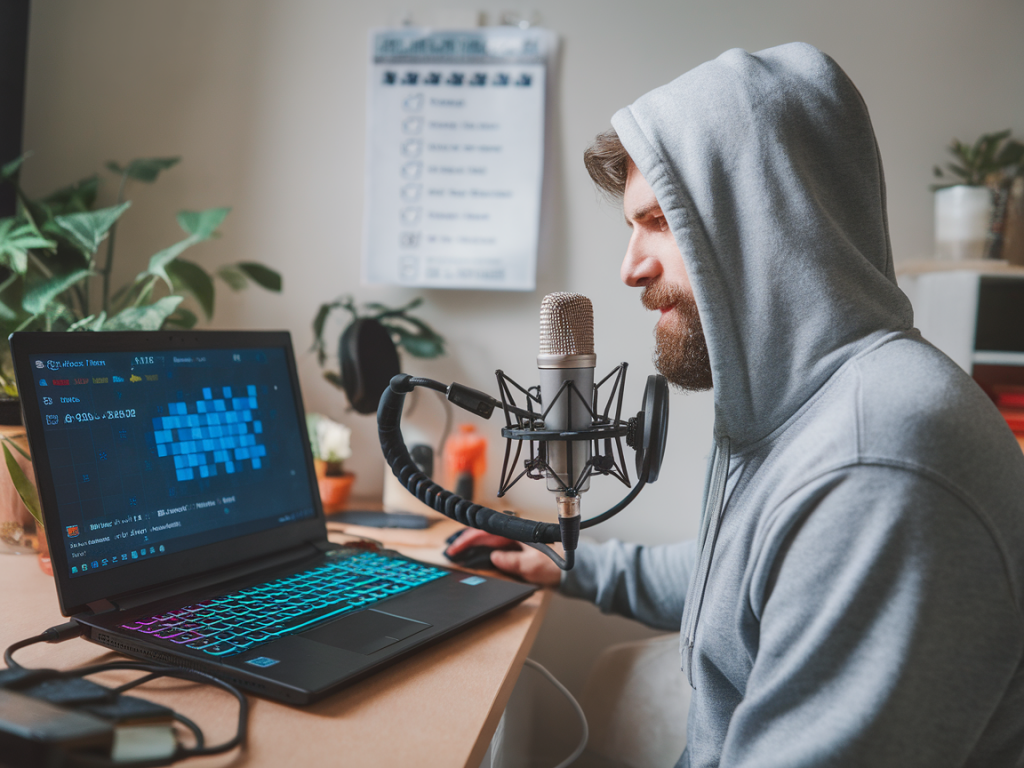
I was halfway through a 16-hour charity marathon when my encoder started showing dropped frames, the chat went quiet, and my CPU meter flirted with the red. If you run long-form streams, you know that the first sign of decline rarely arrives with a single dramatic failure — it’s a slow bleed: small stutters become visible micro-pauses, the bitrate wobbles, and viewers start to disconnect because the experience feels unreliable. Over the years I’ve run and rescued enough marathon sessions to build a repeatable recovery checklist. Below I share the exact encoder, bitrate and scene-change steps I use to stabilize 12+ hour streams without sacrificing viewer experience or burning out my laptop.

Why marathon streams fail (and how to think about failure)

Long sessions expose weaknesses in three places: the encoder, the network, and the scene/asset pipeline. The encoder can leak memory or push the CPU/GPU into thermal throttling. The network can have ISPs that schedule drops, Wi‑Fi can degrade, and cellular fallback can be misconfigured. Scenes that are constantly changing — overlays, browser sources, animated assets — create load and memory fragmentation over time.

When something goes wrong, treat it like triage: stabilize the output (keep frames and bitrate steady), reduce load, and then fix the root cause. The checklist below follows that flow: immediate stabilizers, medium-term fixes, and preventative design notes for your next marathon.

Immediate triage: what to do in the first 60 seconds

These steps are about getting the stream back into a known-good state. They’re quick, low-risk, and do not rely on restarting the whole machine.

  • Switch to a low‑impact scene: Go to a minimal scene with a static image and audio only. This reduces source decode/encode overhead immediately.
  • Lock bitrate and keyframe interval: Force a constant or capped bitrate and set keyframes to 2s. This helps receivers resync more predictably.
  • Toggle hardware encoder (if available): If you’re using x264 and seeing CPU spikes, switch to NVENC/AMF/QuickSync temporarily. If hardware is saturated, switch back to software with a lower preset.
  • Reduce resolution/frame rate: Drop to 720p30 or even 480p30 if necessary. Viewers prefer fewer drops with lower quality than constant stutter.
  • Mute or reduce high-frequency sources: Browser audio players, multiple music sources, or discord/voice overlays sometimes create CPU spikes. Lower their quality or mute nonessential sources.
  • Communicate: Tell viewers you’re doing a quick stabilization. Human context buys you time and keeps engagement.
  • Exact encoder and bitrate settings I use for 12+ hour sessions

    I have different configurations depending on the hardware class. Below is a compact table I use as a starting point. Adjust upward if you know your network and audience can handle it.

    Hardware class Encoder Resolution / FPS Bitrate (video) Keyframe & Preset
    High-end desktop (Ryzen 9 / i9 + NVENC) NVENC (new) 1080p60 (or 1080p30) 6000–8000 kbps Keyframe 2s; Preset: quality or performance
    Mid-range laptop / desktop NVENC or x264 (veryfast) 720p60 or 720p30 3500–5000 kbps Keyframe 2s; x264 preset: veryfast
    Low-power laptop / Wi‑Fi mobile NVENC / AMF / QuickSync 720p30 or 480p30 1500–3000 kbps Keyframe 2s; use hardware preset

    Audio: Always run two audio tracks — a primary stream mix at 128 kbps AAC-LC and a backup at 64 kbps. If your encoder or platform allows dual audio, the lower-quality track can be a lifesaver when bandwidth fluctuates.

    Scene-change checklist (the things that quietly destroy marathons)

    Often the issue isn’t the encoder settings but the scene composition. Animated browser sources, large video loops, timers that spawn new instances, and browser-based overlays are common culprits.

  • Replace animated browser sources with static captures: If you have animated web overlays, swap them to a static PNG or a brief looped video stored locally.
  • Use local media for long loops: Don’t play long stream overlays or background videos from remote CDNs during a marathon; load them locally and loop.
  • Preload and reuse Scene Collections: Create a lean scene collection specifically for marathons with minimal browser sources and duplicated assets disabled.
  • Limit the number of active filters: Filters (noise reduction, VSTs, chroma key) convert into per-frame cost. Only keep essential filters active and use presets that are light.
  • Avoid repeated source creation: Timers, widgets and chatbots that re-create browser sources each loop can leak memory. Use persistent sources and control their visibility instead.
  • Medium-term fixes (5–30 minutes window)

    If the immediate steps didn’t fully stabilize the stream, move into more involved fixes that still avoid a full restart of everything.

  • Restart the capture application (OBS/Streamlabs): Save your scene collection, close OBS, and restart it. This often clears memory fragmentation without touching your streaming key or platform connection.
  • Restart nonessential apps: Close browsers, Discord, or other heavy apps that aren’t required for the stream.
  • Change ingest server: Switch to a different ingest/region endpoint in your platform settings in case the ISP or CDN edge is causing packet loss.
  • Switch to wired or bonded connection: If you’re on Wi‑Fi, plug in. If available, enable a cellular bonding fallback like Teradek, Speedify, or OBS VirtualCam multi‑path solutions.
  • When to restart the machine (and how to make it less disruptive)

    Restarting a host during a marathon is a last resort because it takes time and often disconnects chat integrations. Do it only if you suspect memory leaks, driver issues, or GPU driver instability.

  • Notify chat and schedule a short break: Tell viewers you’ll be back in X minutes and play a countdown image/short loop from local media so the stream remains live.
  • Use a second machine if possible: If you have a backup device, switch ingest to it while the primary restarts. For many creators this is the difference between a failed marathon and a blip.
  • After restart: Reconnect exactly the same encoder settings you used in the table above. Avoid loading old scene collections with heavy browser sources right away.
  • Preventative design for your next marathon

    Prevention beats rescue. Here's the blueprint I follow before every extended stream.

  • Run a 4-hour dry run: Find bottlenecks early. If anything trends upward (CPU, GPU, memory, dropped frames), fix it.
  • Keep scenes lean: Build a marathon-specific scene collection with only essential sources and two fallback scenes.
  • Automate backups: Use OBS hotkeys to switch to the low-impact fallback scene and to toggle hardware encoder modes.
  • Monitor proactively: Use tools like OBS’s stats dock, Streamlabs’ Dashboard, or external monitors (Grafana + Prometheus for advanced setups) to track bitrate, dropped frames, and CPU/GPU temperature.
  • Document your recovery steps: Keep a pinned checklist in chat moderators’ docs so they can help execute steps quickly while you focus on content.
  • Marathon streaming is as much engineering as it is performance. The trick isn’t to prevent every possible failure — you can’t. It’s to have a short, practiced script that stabilizes the audience-facing output quickly, then to methodically remove load and repair the root cause. I lean on hardware encoders, conservative bitrates, minimized scenes, and rehearsed restarts. Those habits saved more than one 12+ hour session for me — and they’ll save yours too if you practice them before the clock is ticking.
    You should also check the following news:

    How to audit your live-to-vod pipeline to find the single bottleneck costing you 20–40% of potential views
    Streaming Tips

    How to audit your live-to-vod pipeline to find the single bottleneck costing you 20–40% of potential views

    When a live stream turns into a low-performing VOD, most people assume the platform or the content...

    Feb 05 Read more...