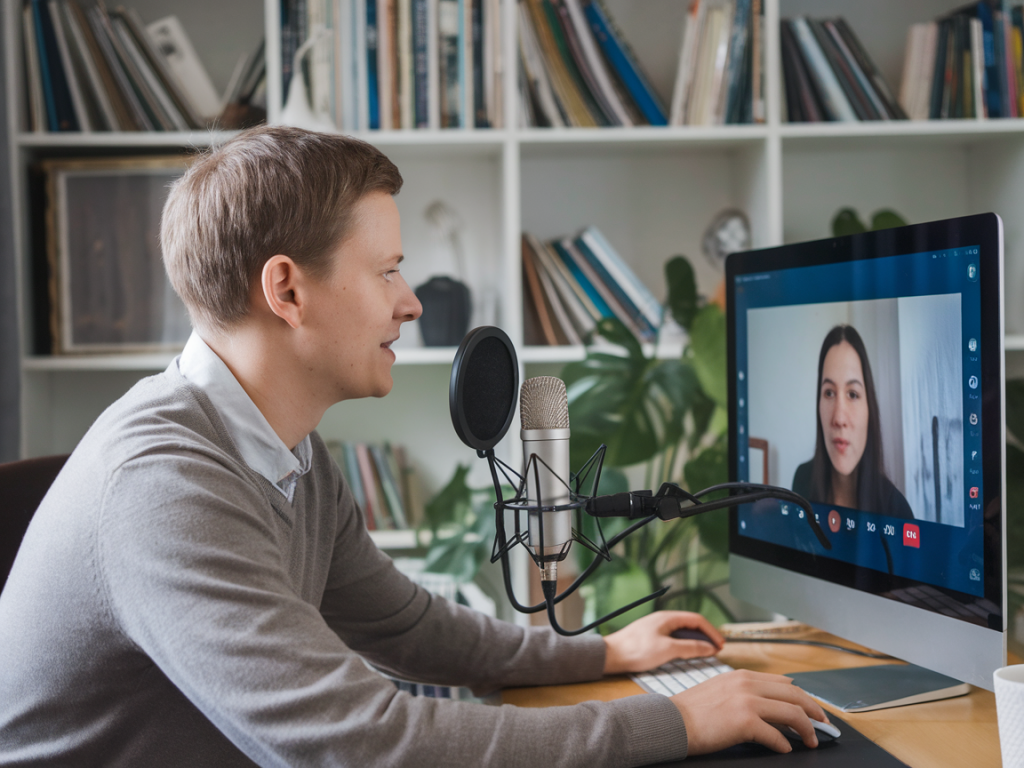
I’ve run into countless sessions where everything looks fine on my end, but my remote guest’s voice slowly drifts out of sync with their video—or with the host audio—making the whole stream feel unprofessional and, worse, hard to follow. Intermittent audio desync in OBS Studio when working with remote guests is one of those problems that can come from many places. Over the years I’ve built a repeatable troubleshooting flow that helps me quickly identify the culprit and get things back on track without cancelling a session. In this guide I’ll walk through that process step by step, with practical fixes and settings to try.
Why intermittent desync happens (short, practical explanation)
There’s no single cause. Desync is usually timing-related and can come from the guest’s device, the network, your capture/encoding chain, or the conferencing software bridging you. Common sources I see:
- Network jitter or packet loss causing variable latency.
- Audio buffering or sample rate mismatch between systems.
- Software echo cancellation/processing introducing delays.
- Wrong capture method in OBS (virtual audio cable vs desktop capture vs NDI).
- Hardware drivers or CPU spikes causing intermittent frame drops/missed audio.
First principles: is the problem local, remote, or in the bridge?
Start by isolating where the desync originates. I always ask a few quick questions and run quick checks before changing settings:
- Does the guest hear themselves in sync in their conferencing app? If yes, the issue is likely after the conferencing app (your capture or OBS).
- If the guest reports they see desync in their local recording, the problem is on their machine or network.
- Is the desync constant or does it appear after X minutes? Intermittent drift often points to buffering or CPU/network stresses over time.
Quick diagnostic checklist (run live)
Run these checks in order. They’re fast and often reveal the root cause.
- Ask the guest to record a short local video with webcam + mic (e.g., their phone or Zoom’s local recording). If their local file is synced, the problem is in the stream path.
- Temporarily bypass OBS: have the guest stream to you using the conference app’s recording and compare. If desync persists, it’s probably network or the guest’s device.
- Swap capture methods: if you’re capturing desktop audio via “Desktop Audio” in OBS, try capturing the conferencing app via a virtual audio cable (VB-Audio VoiceMeeter / VB-Cable) or NDI and see if the desync disappears.
- Check CPU/GPU and network load on both ends. Spikes correlate with intermittent timing issues.
Common fixes and why they work
Below are the fixes I use most. I prefer to make the least disruptive change first so the guest doesn’t have to tinker with complicated settings mid-call.
1) Use a reliable capture path
How you bring guest audio into OBS matters. My preferred options, in order:
- NDI (NewTek NDI): Low-latency network-based video+audio. Works well on LAN or stable internet with proper setup (NDI Bridge for remote). If you can get NDI working, it’s often the cleanest path.
- Virtual audio cable + dedicated app capture: Route the conferencing app’s output into OBS with VB-Cable or VoiceMeeter. This isolates audio so OBS isn’t grabbing multiple system sounds.
- Direct application capture: On Windows, capture the app directly instead of Desktop Audio to avoid capturing extra buffering layers.
2) Match sample rates everywhere
One subtle but common cause: sample rate mismatches (44.1kHz vs 48kHz). If your interface, OBS, and conferencing app use different sample rates, the buffers can drift.
- In Windows sound settings and your audio interface control panel, set the default sample rate to 48,000 Hz (I recommend 48kHz for video workflows).
- In OBS, go to Settings → Audio and set the sample rate to the same value.
- Ask guests to check their audio device settings (or ask them to use their browser/app defaults if they’re unsure).
3) Lower buffering and disable advanced audio processing
Some conferencing apps enable aggressive noise suppression, gain control, and echo cancellation. While helpful for calls, these can add variable latency.
- Ask the guest to disable noise suppression/auto gain if available (e.g., in Zoom or Teams options).
- In OBS, avoid using plugins that introduce extra buffering on guest audio tracks (e.g., large delay filters unless necessary).
- Check your capture app’s buffer size; smaller buffers reduce latency but may increase CPU. Find a balance.
4) Use dedicated recording/monitoring setups
I always recommend a "clean feed" approach: separate the recorded/streamed mix from the host’s monitoring mix.
- Route guest audio to a dedicated OBS input that’s only used for the stream/recording. Use an aux mix or VoiceMeeter to create separate monitoring feed with different latency.
- Monitor with headphones; speaker bleed and echo cancellation on the guest side can cause processing delays.
5) Address network jitter and packet loss
Intermittent desync often tracks with network instability. Quick checks and fixes:
- Run a quick ping/traceroute to the conferencing service (or ask the guest to). High jitter or packet loss is a red flag.
- Ask the guest to use wired Ethernet if possible. Wi‑Fi can be variable, especially on crowded networks.
- Close bandwidth-hungry apps (cloud backups, large downloads). On mobile hotspots, drop to audio-only or lower resolution to stabilize timing.
Troubleshooting table: symptoms → likely cause → action
| Symptom | Likely cause | Action |
|---|---|---|
| Gradual drift over minutes | Sample rate mismatch or long-term buffering | Set sample rates to 48kHz across devices; test different capture method |
| Sudden jumps or skips | Network jitter / packet loss | Switch to wired, reduce bandwidth, use lower resolution/codec |
| Only noticeable in OBS, not in app | OBS capture method or filter introducing delay | Use virtual cable or NDI; remove delay filters |
| Desync on both ends | Guest device issue (drivers, app processing) | Guest records locally, updates drivers, restarts app |
When to use advanced fixes
If the quick fixes don’t help, try these targeted techniques:
- Enable OBS’s global audio sync offset per source to manually correct small consistent offsets. This is a band-aid if the delay is stable.
- Use a local NDI/OBS.Ninja workflow for remote guests: OBS.Ninja (now VDO.Ninja) can be more resilient and configurable than some conferencing apps, and you can control bitrate/resolution independently.
- Consider a dedicated cloud recorder (e.g., Riverside.fm, SquadCast): these services record local-quality tracks on each end and provide post-session alignment, eliminating sync issues for VOD.
My go-to troubleshooting flow (summary)
- Reproduce: confirm whether the guest’s local recording is in sync.
- Isolate: bypass OBS momentarily to see if the conferencing app itself is the issue.
- Tune capture: move to NDI or virtual audio cable instead of desktop capture.
- Match sample rate: set everything to 48kHz.
- Stabilize network: wired connections, close background apps, lower bitrate if necessary.
- If unresolved: use dedicated recording services or manual offsets for VOD.
I keep a short checklist in my streaming control room so when a guest reports intermittent desync I can walk through these steps without panicking. Most sessions are saved by switching the capture method, verifying sample rates, and asking for a wired connection. When those don’t work, a cloud recorder or NDI bridge usually does the trick.
If you want, I can give you a tailored checklist based on your current setup (OBS version, capture method, conferencing app, and whether you use a hardware mixer). Share those details and I’ll map the most likely fixes and the exact OBS settings to change.