I’ve been building live-streaming rigs for years with one goal: reliable, repeatable systems that don’t require babysitting for eight-hour charity marathons or full-day conferences. If you’re on a budget and want a compact, low-latency encoder box that keeps a stable stream for 8+ hours, you can do it for under $500 using an Elgato Cam Link as the capture input and a lightweight, dedicated small PC or mini-PC as the encoder. Below I walk through the parts, configuration, and real-world tricks I use to keep latency low and uptime high.
Why choose a dedicated encoder box?
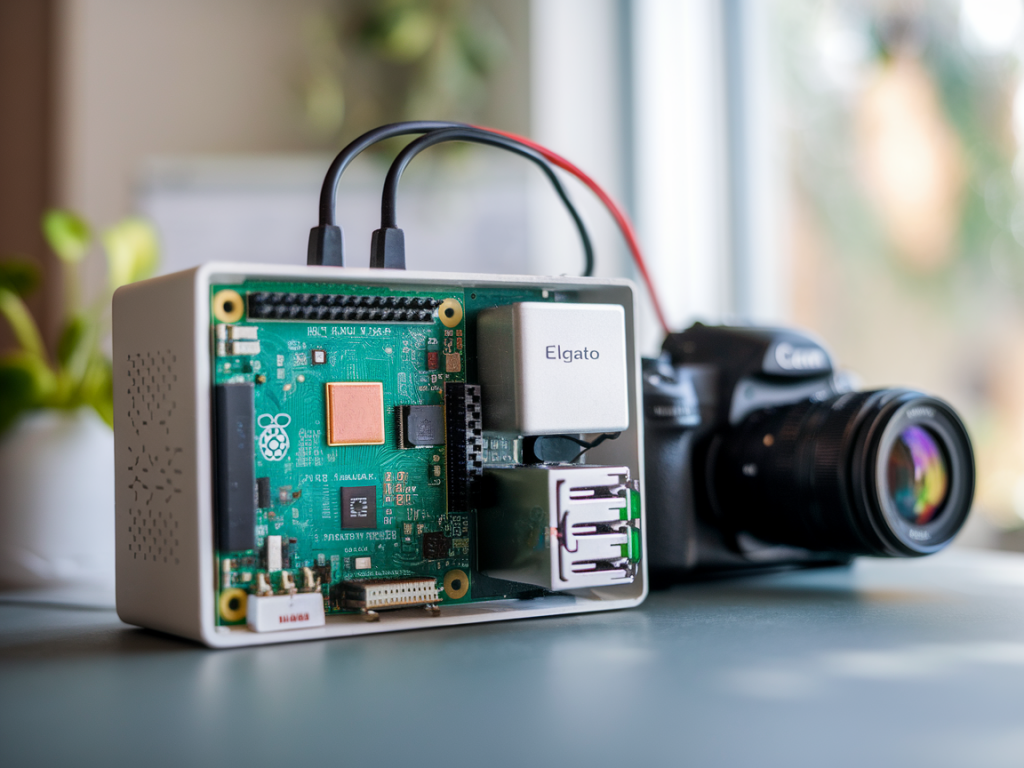
Streaming from a full desktop works, but it mixes capture, encoding, and other apps on the same machine. A dedicated encoder box isolates the encoding task, reduces variability, and lets you scale: the event laptop handles slides/chat, the encoder box handles video. Using an Elgato Cam Link (or similar USB HDMI capture) keeps cost down and makes the box compatible with cameras or HDMI outputs from other devices.
What I mean by “low-latency” and “stable”
By low-latency I mean sub-2 second end-to-end latency from camera to CDN ingest when using a fast encoder preset and a decent network. Stability means the encoder runs for 8+ hours without dropouts, thermal throttling, or CPU overload, and it reconnects cleanly after minor network blips.
Target parts list (budget under $500)
Prices change, but this is the practical parts list that keeps us under $500 while providing reliable performance.
| Item | Model / Notes | Approx. cost (USD) |
| Mini PC | Beelink SER5 / MinisForum EliteMini / Intel NUC-style with Ryzen 5 or Intel i5 (used/refurb can be much cheaper) | $250–$350 (used/refurb cheaper) |
| Elgato Cam Link | Elgato Cam Link 4K (USB 3.0 capture) | $100–$120 |
| USB 3.0 cable / powered hub (optional) | Short USB 3.0 cable, or powered hub if ports limited | $10–$25 |
| Cooling / thermal pad upgrade | Small fan or additional thermal pads for prolonged load | $5–$20 |
| SD Card or small SSD | 120–256GB SSD or M.2 NVMe for OS and logs | $15–$35 |
Tip: If you’re extremely budget constrained, an Intel NUC or used laptop with USB 3.0 and a decent CPU can work as the encoder box. The main requirement is a modern CPU with a hardware encoder (Intel Quick Sync or AMD VCN) and a reliable USB 3.0 host for the Cam Link.
Software stack I use
I prefer OBS Studio as the encoder application because it’s flexible and works with hardware encoders. On a dedicated encoder box I install a minimal OS image — typically Windows 10/11 LTSC for compatibility with Cam Link drivers or a lightweight Linux (Ubuntu) with OBS Studio if you’re comfortable. Windows drivers for Cam Link are straightforward; Cam Link may not be officially supported on some Linux builds without additional setup.
OBS settings for low latency and 8+ hour stability
My guiding principle is balance: quality > bandwidth within constraints, but keep CPU/GPU usage steady. For typical 720p60 or 1080p30 streams:
Thermals and power — the silent killers of long streams
Small mini-PCs can throttle under sustained encoding load. I do three things:
USB and Cam Link tips
Cam Link is USB 3.0 — ensure it’s plugged into a true USB 3.0 port on the mini-PC. Avoid long passive cables; use a short, high-quality USB 3.0 cable or a powered hub if ports are limited. If the Cam Link disconnects during long streams, common causes are USB power management and thermal stress on the Cam Link unit. To mitigate:
Network reliability and CDN settings
Even the most stable encoder box needs a steady outbound connection. I recommend:
Monitoring and automation
My objective is “set-and-forget.” For long events I run a simple monitoring overlay (or dedicated laptop) that watches CPU, GPU, network bitrate, and OBS logs. I also use:
Real-world testing: what I run and why it worked
On a recent 12‑hour stream I built a box using a used Beelink mini PC with Ryzen 5, Cam Link 4K, and a short USB 3.0 cable. I set OBS to use AMD VCN hardware encoding at 720p60 CBR 4500 kbps. Thermal repaste before the stream and a small USB fan kept CPU temps under thermal throttle thresholds. The stream ran 12 hours with only a single 15s CDN-side reconnection when our upstream ISP briefly flapped. OBS’s reconnection settings recovered automatically.
Another time I used an Intel NUC with Quick Sync and 1080p30 at 5500 kbps for a workshop. Choosing the Quick Sync encoder and a “balanced” preset kept CPU low, and the box recorded a local backup without performance impact.
Troubleshooting quick checklist
Building a sub-$500 encoder box that stays stable for marathon streams is all about picking the right mini-PC with hardware encoding, treating thermals and USB reliability seriously, and optimizing OBS for steady bitrate and minimal CPU strain. If you want, I can post a specific parts shopping list with current UK pricing from streamamp.co.uk links and walk through an image-by-image build and Windows configuration guide — tell me your camera and target resolution and I’ll tailor recommendations.