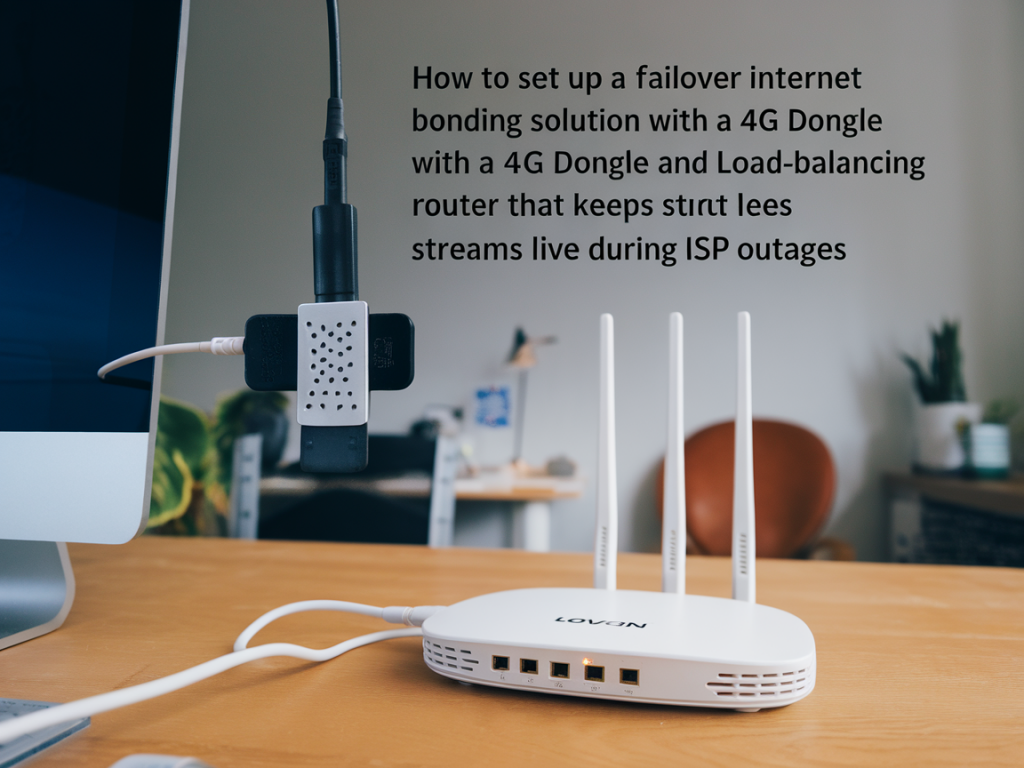
I’ve been in the business of keeping streams live long enough to prove that redundancy is not a “nice to have” — it’s essential. In this guide I’ll walk you through a practical, tested approach to set up a failover internet bonding solution using a 4G dongle and a load‑balancing router so your live streams survive ISP outages. I’ll cover the difference between load balancing and bonding, hardware and SIM choices, configuration tips, encoder settings, and testing strategies that actually work in the field.
Why you need more than a single ISP
One ISP down means lost revenue, angry viewers, and broken momentum. For streamers and small teams that can’t afford downtime, adding a cellular connection as a failover (or combining it for true bonding) gives you resilience. But different approaches matter:
Failover/load balancing: The router switches traffic to an alternate link when the primary fails (or spreads sessions across links). This is sufficient for many streamers — you keep the stream online, though behavior during the switch depends on your encoder and platform.True bonding (channel bonding): Multiple links are combined into a single virtual channel. This can increase throughput and reduce packet loss when done well, but typically requires a bonding service or routers that support bonded VPN (e.g., Peplink SpeedFusion, OpenMPTCProuter, or commercial bonding services).What I use and why
I prefer a pragmatic stack: a load‑balancing router that supports USB tethering or a USB 4G dongle, plus a bonding option for critical streams. For consumer budgets, routers from TP‑Link or Mikrotik provide simple failover. For professional reliability and bonding, Peplink Balance or Pepwave devices (with SpeedFusion) are industry‑standard. Open source enthusiasts can use OpenWrt/Mikrotik combined with a cloud bonding endpoint like OpenMPTCProuter.
Hardware and SIM considerations
Choose components based on your reliability needs and budget:
Router: Pick a router with at least two WAN interfaces and USB support. Examples: | Peplink Balance / Pepwave Max | Best for bonding (SpeedFusion), robust failover, AC-level Wi‑Fi options. |
| Mikrotik (CCR / hEX with LTE) | Highly configurable, strong for custom metrics and scripts; slightly steeper learning curve. |
| TP‑Link ER series | Cheap, reliable load balancing and USB tethering for basic failover. |
4G dongle / modem: Use a modem with good Linux compatibility (Huawei E3372, ZTE MF283, or a USB modem recommended by your router vendor). Some routers have native LTE modules (Peplink/Cradlepoint).SIMs and data: I recommend two SIMs from different carriers if possible. Look for unlimited or high‑cap monthly data for streaming; consider temporary “data boost” plans for live events. Also check APN settings and whether your plan allows tethering or hot‑spot connections.Basic setup: failover using USB 4G dongle
This is the simplest way to keep streams live during an ISP outage.
Insert 4G dongle into the router’s USB port. If the router requires a specific modem list, confirm compatibility.In the router’s WAN settings, set your primary ISP as WAN1 and your 4G dongle as WAN2 / USB WAN.Configure health checks (also called link monitoring or gateway monitoring) — probe an external endpoint (8.8.8.8, your CDN ingest URL, or a reliable latency-sensitive host) every 10–15 seconds. This decides when to failover automatically.Set failover rules: prefer WAN1 for all traffic; when WAN1 fails health checks, fail over to WAN2.If the router supports link weighting and load balancing, keep failover strict for your streaming application to avoid jitter during normal operation.Upgrading to bonding (optional)
If you want the benefits of aggregated bandwidth or smoother handover, bonding is the next step.
Choose a bond-capable router or bonding service. Peplink SpeedFusion requires a Peplink router on-prem and a Peplink device or cloud endpoint on the other side; third‑party bonding services (e.g., LiveU, Bond, Mushroom Networks) provide cloud endpoints.Configure SpeedFusion or MPTCP tunnels to a cloud server or vendor endpoint. The router fragments and distributes packets across links, then reassembles on the cloud side — from the CDN or platform perspective, you have a single stable endpoint.Tune latency compensation and FEC (forward error correction) if available. FEC can hide packet loss across cellular links but adds overhead.Encoder settings and platform considerations
Your router can do a lot, but the encoder needs to be configured to tolerate switching links and momentary jitter.
Bitrate: Set a bitrate that the weakest link can sustain in failover (ideally no higher than 60–75% of typical 4G uplink speed). For example, if your 4G uplink is reliably 8 Mbps, keep bitrate to 5–6 Mbps for stable failover.Keyframe interval: Keep keyframe (GOP) interval at 2 seconds for most live platforms; some bonding solutions recommend shorter intervals to shorten recovery from packet loss.Buffering: Use a small encoder buffer (1000–3000 ms) to absorb jitter but not so large that your stream latency explodes.Retry and reconnect settings: If the router fails over, some encoders drop the connection. Enable automatic reconnect and shorter reconnect intervals (5–10s) in OBS/Streamlabs or hardware encoders.Testing your setup
Testing beats hope. I always run these checks before going live:
Simulate ISP outage by unplugging WAN1 while streaming to a private test page. Watch how long the platform sees an interruption and whether the stream reconnects cleanly.Measure bitrate during failover with a network monitor and direct OBS stats. Note packet loss, increased latency, and buffering in the player.Test different locations and signal strengths for the 4G dongle. Cellular performance varies wildly even across different rooms in the same venue.Test bonding behavior: check if the bonded upload exceeds single link capacity and whether viewers experience fewer rebuffer events.Monitoring and alerts
Proactive monitoring reduces panic during a live event.
Enable router email/SMS alerts for WAN down events and data usage thresholds.Use external monitors (Pingdom, UptimeRobot) to detect stream ingest endpoint downtime.Log stream stats in OBS and capture encoder logs for postmortem analysis.Common pitfalls and how I avoid them
From my experience, the usual issues are:
Incompatible dongles: Test before the event. Some routers only accept a short list of modems.SIM throttling: Carrier policies can throttle or block continuous high‑bitrate streams. Talk to the carrier or choose a business/tethering plan.Failover flapping: If health checks are misconfigured, the router can switch back and forth between links. Use sensible thresholds (3 failed probes with 5s intervals) to avoid flapping.Addressing and NAT issues: When combining multiple uplinks, make sure your router handles NAT and source IP consistently so the streaming service doesn’t see erratic IPs enabling anti‑abuse triggers.Quick checklist before going live
Verify router firmware is up to date and bonding features are licensed (if required).Confirm 4G dongle and SIM work and that speed is sufficient for planned bitrate.Set and test health checks and failover thresholds.Configure encoder reconnect behavior and appropriate bitrate/keyframe settings.Run a full failover test while streaming to an unlisted stream to validate viewer experience.If you want, I can tailor a parts list and step-by-step configuration for a specific router model (Peplink, Mikrotik, TP‑Link) and the streaming platform you use (YouTube, Twitch, Vimeo). Tell me what hardware and platform you have and I’ll map out the exact settings I’d use for your setup.